CygNet Measurement > FMS ActiveX Controls > CygNet FMS Dashboard Control

CygNet FMS Dashboard Control

Dashboard Control icon The CygNet FMS Dashboard Control is an ActiveX control that provides the primary view of system measurement data. Use this view to see high level statistics for selected Nodes in order to quickly sort through a large amount of data. Each row of the data grid represents a Node, and each column represents a time range or a property of a selected data view.

See Using the Dashboard Control for more information about configuring and using this control.

See CxFmsDashboardCtrl Object in the Scripting section for more information about scripting this control.

Adding a Dashboard Control to a Screen

To Add and Configure a CygNet FMS Dashboard Control in CygNet Studio

  1. Create a new CygNet Studio screen.
  2. Click the ActiveX tool ActiveX on the Standard Tools palette.
  3. Click and drag the outline of a box on the screen. When the mouse button is released, an Insert OLE Control dialog box appears.
  4. In the dialog box, double-click on CygNet FMS Dashboard Control to place a Dashboard control on your screen.
  5. Right-click the control to open its property sheet.
  6. On the ActiveX page, click ... or double-click (OCXProperties) to access the CygNet FMS Dashboard Control Properties dialog box.
  7. The CygNet FMS Dashboard control contains a General tab, a Dashboard tab, and a Commands tab.
  8. Configure properties on each page as desired, click Apply, and then click OK.
  9. Close the property sheet, save, and then switch to Run mode to use the control.

General Properties

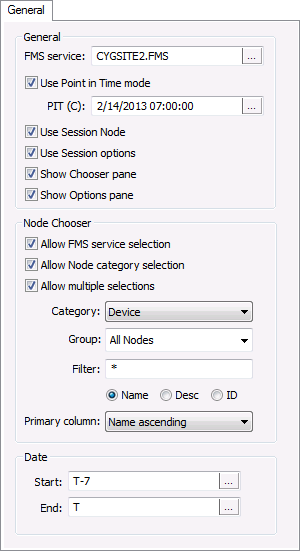
The General page of the CygNet FMS Dashboard Control Properties dialog box contains the following properties. This control displays data in Contract time (C), therefore time format selection is not available in this control.

General Properties

Property Description
General

FMS service

Type the name of the Site.Service to which to connect in the control's Chooser, or click ... to access the Select Service dialog box.

Use Point in Time mode

Click the check box to select/clear the option to use the Point in Time mode.

PIT (C)

If Use Point in Time mode is selected, do one of the following.

  • Type the desired date/time value into the text box.
  • Click ... to access the Select Date and Time dialog box, then enter the date/time, in Contract time (C), from which you want to view data.

Default value is T, date and time today.

See Using the Home Menu for more information about PIT mode.

Use Session Node

Click the check box to select/clear the option to Use Session Node instead of using the Node chooser.

Default value is cleared.

Use Session options

Click the check box to select/clear the option to Use Session options instead of entering a time window and time format.

Default value is cleared.

Show Chooser pane

Click the check box to select/clear the option to display the Chooser pane in the control.

Default value is selected.

Show Options pane

Click the check box to select/clear the option to display the Options pane in the control.

Default value is selected.

Node Chooser

Allow FMS service selection

Click the check box to select/clear the option to show the FMS service selector in the control's Chooser.

Allow Node category selection

Click the check box to select/clear the option to show the Node category selector in the control's Chooser.

Allow multiple selections

Click to allow multiple selection of Nodes in the control's Chooser list.

Category

Select the desired Node Category to display in the control's Chooser from the drop-down menu.

Options are as follows.

  • <Any>
  • Group
  • Device
  • Gas Device
  • Liquid Device
  • Station

Group

Select the desired Node Group type to display in the control's Chooser from the drop-down menu.

Options are as follows.

  • All Nodes
  • General
  • Station
  • By Category

Filter

Select a filter.

First type a partial string of known Node name/description/ID characters to populate the filter text box in the control's Chooser. Wildcard values * (multiple character) and ? (single character) are supported.

Default value is * (multiple character wildcard) - all.

Note: Wildcards can be used only when filtering by Name or Desc, not when filtering by ID.

Then select a Node option to filter for results.

Options are as follows.

  • Name
  • Desc
  • ID

Primary column

Select the desired primary sort column in the control's Chooser from the drop-down menu.

Options include the following

  • Type ascending
  • Name ascending
  • Description ascending
  • Type descending
  • Name descending
  • Description descending

Default value is Name ascending

Date

Start

Date selections are in Contract days (C).

Enter the starting date (absolute or relative date) in the text box or click ... to access the Select Date dialog box.

See Selecting Date and Time for more information.

End

Date selections are in Contract days (C).

Enter the ending date (absolute or relative date) in the text box or click ... to access the Select Date dialog box.

See Selecting Date and Time for more information.

See Using the Dashboard Control for more information about configuring these properties.

Dashboard Properties

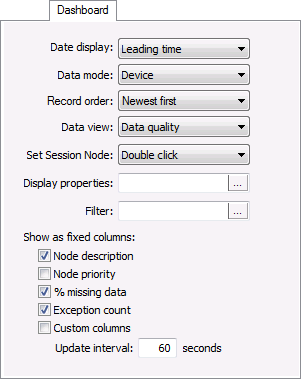
The Dashboard page of the CygNet FMS Dashboard Control Properties dialog box contains the following properties.

Dashboard Properties

Property Description

Date display

Click to select a date display convention from the drop-down menu.

Options are as follows.

  • Show Leading - time shown on the column header indicates the leading or beginning time of the increment
  • Show Trailing - time shown on the column header indicates the trailing or ending time of the increment

Data mode

Click to access the drop-down menu to select a data mode in which to view summary data.

Options are as follows.

  • Station
  • Device

In Station mode, only station-level data records are shown. In Device mode, only device-level data records are shown.

Record order

Click to access the drop-down menu to select the order in which to view summary data records.

Options are as follows.

  • Oldest first
  • Newest first

Default value is Oldest first.

Data view

Click the Data view drop-down menu to select the type of data you would like displayed, and refresh the grid.

In Device data mode, options are as follows.

  • Analyst overview
  • Collection details
  • Collection status
  • Configuration poll
  • Data quality *
  • Edit state
  • Linked exceptions
  • Open exceptions
  • Raw data export

* See Note.

In Station data mode, options are as follows.

  • Analyst overview
  • Data quality *
  • Edit state
  • Open exceptions

* See Note.

See Data Quality, Data Collection Status, Data Collection Details, Edit State, and Exceptions in the CygNet Measurement Concepts topic for more information about these options.

Set Session Node

Click to access the drop-down menu to select the manner in which to set the Session Node in the grid.

Options are as follows.

  • Single click
  • Double click

Default value is Double click.

Display properties

Click ... to access the Display Properties dialog box to edit color options in the display editor to customize the appearance of data shown in the grid.

See Configuring Dashboard Display Properties for more information.

Configure filter

Click ... to access the Configure Dashboard Filter dialog box to specify data filter details to apply to the grid.

See Configuring Dashboard Filters for more information.

Show as fixed columns

Note: The Custom columns option appears in Device data mode only.

Click the check box(es) in the column list to select/clear the fixed column(s) to display.

Options are as follows.

  • Node description
  • Node priority
  • % missing data
  • Exception count
  • Custom columns

See Using the Dashboard Control for more information about optional fixed columns.

Update interval

This field becomes available when Custom columns is selected.

Type in the desired update interval, in number of seconds, for the custom data columns. The value you set will persist.

Minimum value is 10 seconds.

Maximum value is 86,400 seconds (daily).

(Initial default value is 60 seconds.)

Note: When the Data view is set to Data quality, the result is shown as either a single percentage or as a range of percentages. The single percentage appears for days where the data quality is the same for the entire 24 hour window. The range appears for days where the data quality varies within the 24 hour window, and is expressed as range L-H%, where L is the lowest and H is the highest data quality in the range.

See Using the Dashboard Control for more information about configuring these properties.

Commands Properties

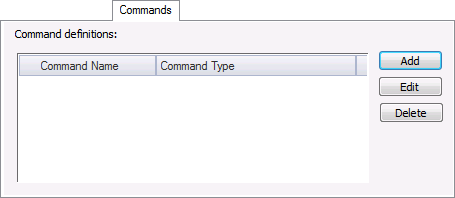
The Commands page of the CygNet FMS Dashboard Control Properties dialog box contains the following options.

Commands Properties

See Managing Node Commands for more information about configuring commands for the FMS Dashboard control.


More:

Back to top

Let us know how we can improve this topic.

CygNet at weatherford.com

© 2020 Weatherford. All rights reserved.